Aero 1 Lite Controls: Guide for Beginners & Kids
In This Article
- The Aero 1 Lite controls feature one-key takeoff for hassle-free lift-off.
- Simple calibration ensures optimal flight stability and steering.
- Safety-focused design includes propeller guards and an emergency stop function.
- Perfect for kids, thanks to ergonomic controller and child-safe features.
- Performs well both indoors and outdoors with appropriate setup.
- Outshines competitor drones in the beginner category with unmatched ease of use.
Getting Started with Aero 1 Lite Controls
What You Get Inside the Box
When you first unbox the Aero 1 Lite, you're met with a compact yet brilliantly designed quadcopter that’s engineered for simplicity and safety. The Aero 1 Lite controls are pre-configured out of the box, enabling even first-time flyers to operate it with confidence. In the box, you'll typically find the drone itself, the remote control unit, a USB charging cable, a pack of replacement propellers, a screwdriver for maintenance, and a concise instruction manual. Some variations may also include propeller guards, which are highly recommended for indoor use, especially for younger users.
Understanding the One-Key Takeoff Feature
How One-Key Elevation Works
The standout feature of the Aero 1 Lite controls is undoubtedly the one-key takeoff. This cleverly engineered function allows the drone to lift off and hover at a stable altitude with a single tap of a button. This automation eliminates the need for manual throttle calibration, making it particularly attractive to novices and children. When the one-key button is pressed, onboard sensors synchronise to ensure level flight, and the motors activate in harmony to gently lift the drone. As a result, the complex coordination usually required from the pilot is fully automated, which reduces user error and boosts overall safety.
"The one-click takeoff feature is a game-changer. It’s made flying our drone a fun, stress-free experience."
Step-by-Step Takeoff Instructions
Flying the Aero 1 Lite is surprisingly straightforward due to its user-friendly control scheme. Follow these steps to master your takeoff:
1. Place the drone on a level surface: Preferably an open space that is free of obstacles. This ensures accurate sensor calibration.
2. Turn on the drone and remote: Push the power button on the drone, followed by the remote control. You'll see indicator lights blink rapidly while pairing.
3. Establish connection: Push both remote sticks down and inward until the remote and drone lights turn solid. This signals successful pairing.
4. Calibrate the gyroscope: Pull both sticks down and to the left. The lights will blink, indicating the gyroscope is calibrated.
5. Press the One-Key Takeoff button: This is prominently labelled on the transmitter. The drone will gently rise and hover approximately 1 metre above the ground.
Remember to keep your hands on the controls during takeoff, even though the Aero 1 Lite handles the lift automatically. This keeps you ready for any directional adjustments.
How to Ensure Your Drone is Connected & Calibrated
For the Aero 1 Lite controls to function as intended, proper connection and calibration are imperative. Failing to follow these procedures could result in erratic flight behaviour. Always start with a fully charged battery for both the drone and the remote. A weak battery can cause inconsistent control signals.
When you power on the unit, make sure the LED lights on both devices exhibit correct pairing sequences. No flashing lights and a solid glow generally indicate a stable connection. Calibration is particularly important if the drone drifts without input. Recalibrating the gyroscope will realign the drone's spatial orientation and restore accurate handling. If you're unsure whether your drone is calibrated, it’s safer to recalibrate before taking flight.
Safety Tips for First-Time Flyers
Flying drones is thrilling, but it must be done responsibly, especially for beginners. The Aero 1 Lite controls are designed with safeguards, but users must also contribute to safe flying practices.
Best Practices for Safe Flying
- Always begin flights outdoors in open areas with minimal foot traffic.
- Avoid flying near water, trees, powerlines, or buildings.
- Use propeller guards if flying indoors or around children.
- Ensure weather conditions are appropriate—avoid strong winds and rain.
- Maintain line of sight with your drone at all times.
By following these principles, you're reducing the risk of crash landings and accidental damage to property or bystanders. The intuitive design and features like one-key landing also further improve safety for inexperienced pilots.

Aero 1 Lite vs Other Beginner Drones
Compared to other beginner drones in its class, the Aero 1 Lite stands out for a few key reasons. While many drones claim to be beginner-friendly, the simplified Aero 1 Lite controls justify that label. The one-key takeoff and landing functionality distinguish it from competitors, who often require simultaneous inputs or manual throttle operations.
Furthermore, the Aero 1 Lite features altitude hold, headless mode, and emergency stop—functions often reserved for higher-end models. While drones like the Syma X5 or Holy Stone HS110D offer similar features, Aero 1 Lite’s smoother user interface and superior sensor calibration offer better flight stability out of the box.
Its affordability and feature-rich controller provide a huge amount of value, especially for families. For a detailed comparison, check out our advice on Learn more about Beginner Drone Operation and Safety Guides.
Top Features That Make Aero 1 Lite Child-Friendly
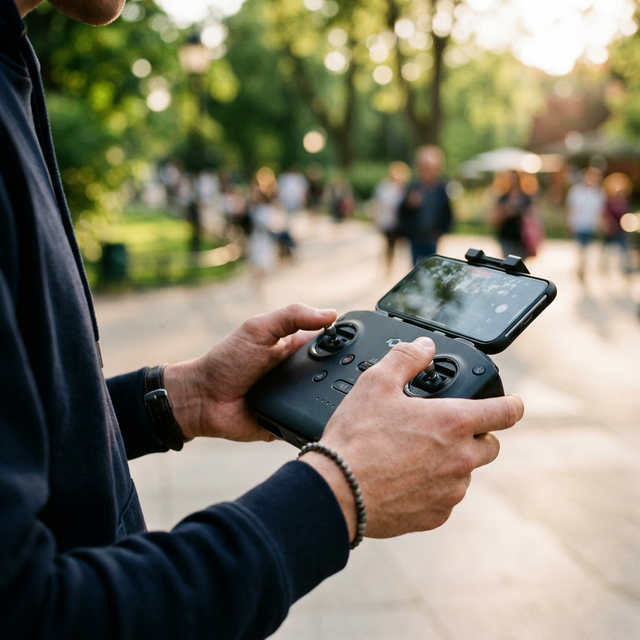
Ease of use is critical for younger drone enthusiasts. The Aero 1 Lite controls embrace simplicity without compromising on safety or performance. The ergonomic controller fits smaller hands well, with clearly labelled buttons for takeoff, landing, and directional control. Headless mode aids spatial orientation—ideal for children still learning left from right when facing different directions.
Additionally, parents will appreciate the built-in emergency stop function, which immediately cuts power to the motors in case of mishaps. This is crucial when things go awry during flight. The propeller guards also contribute to a safer flight, reducing injury risks if the drone collides with someone.
With real-time altitude stabilisation and simple controls, the Aero 1 Lite lowers the barrier of entry for young flyers while reinforcing safe piloting behaviours.
Common Troubleshooting for Control Issues
Even though the Aero 1 Lite controls are built with reliability in mind, occasional glitches may occur. One common issue is the drone not responding after turning it on. In most cases, this means the drone and controller are not properly paired. Restart both, and repeat the pairing and calibration steps.
Another frequent problem is unwanted drifting. If the drone drifts sideways without input, re-calibrating the gyroscope typically resolves the issue. Hover instability often relates to weak batteries, improperly installed propellers, or sensor misalignment. Replace any damaged parts and ensure all props spin freely without obstruction.
If forward or backwards movement isn't working correctly, confirm that you're not in altitude hold mode and inspect the flight stick on the controller for responsiveness. If none of these steps work, contact manufacturer support or visit Explore entry-level flight control systems for firmware and updates.
Flying Indoors vs Outdoors: What to Know
The Aero 1 Lite is versatile enough to fly both indoors and outdoors, but adjustments should be made for each environment. Indoors, flight space is limited, so it’s crucial that you fly in a clutter-free room. Propeller guards are essential indoors to prevent wall and furniture damage. Activate headless mode to support easier control when navigating tight areas.
Outdoors requires wind-aware flying. The Aero 1 Lite can handle mild breezes, but anything stronger will negatively impact its stability. Launch in wide, open spaces like parks. The GPS-free model relies on visual orientation and altitude hold rather than satellite navigation. This makes it lightweight and responsive but also susceptible to strong gusts. Always launch from level ground and maintain visual contact for optimal safety.
Real Stories from Aero 1 Lite Users
Many users agree that the Aero 1 Lite controls provide an ideal entry point into drone flying. One parent mentioned, “I bought the Aero 1 Lite for my 10-year-old, and within 10 minutes he was flying solo.” Several hobbyists have praised the drone’s durability and reliable one-key takeoff under various conditions.
Another reviewer shared, “After trying multiple entry-level drones, the Aero 1 Lite was by far the easiest to control. The calibration functions really make a difference for precision movement.” These testimonials consistently reinforce the Aero 1 Lite's reputation as a top choice for both entertainment and education. For further experience-based reviews, see Read a related article.
Final Take: Why Aero 1 Lite Controls Make Flying Easy
The Aero 1 Lite controls epitomise simplicity, safety, and functionality—making it an unparalleled choice for beginners and hobbyists alike. From its one-key takeoff capability to versatile flight modes and child-friendly safety features, it offers an incredibly accessible flying experience.
Whether flying indoors or outdoors, users benefit from stable, responsive manoeuvring and intuitive control mechanics. The positive user feedback and robust design further cement the Aero 1 Lite’s status as a leader in the beginner drone market. If you're seeking effortless flight and top-tier usability, the Aero 1 Lite delivers across every metric.
Great guide on aero-1-lite-one-key-takeoff-controls-guide – Community Feedback
How do I use the one-key takeoff on the Aero 1 Lite?
Switch on your Aero 1 Lite, ensure the drone and remote are paired, then press the One-Key Takeoff button. The drone will lift off automatically and hover at a safe height.
Is the Aero 1 Lite suitable for young children?
Yes, the Aero 1 Lite features kid-friendly controls, safety guards, and simple one-key flying, making it ideal for children aged 6 and up under adult supervision.
What should I do if the drone doesn’t respond to one-key commands?
Check the drone's battery, ensure the drone and remote are correctly paired, and confirm you are in an open area free of interference. Follow troubleshooting in your manual.